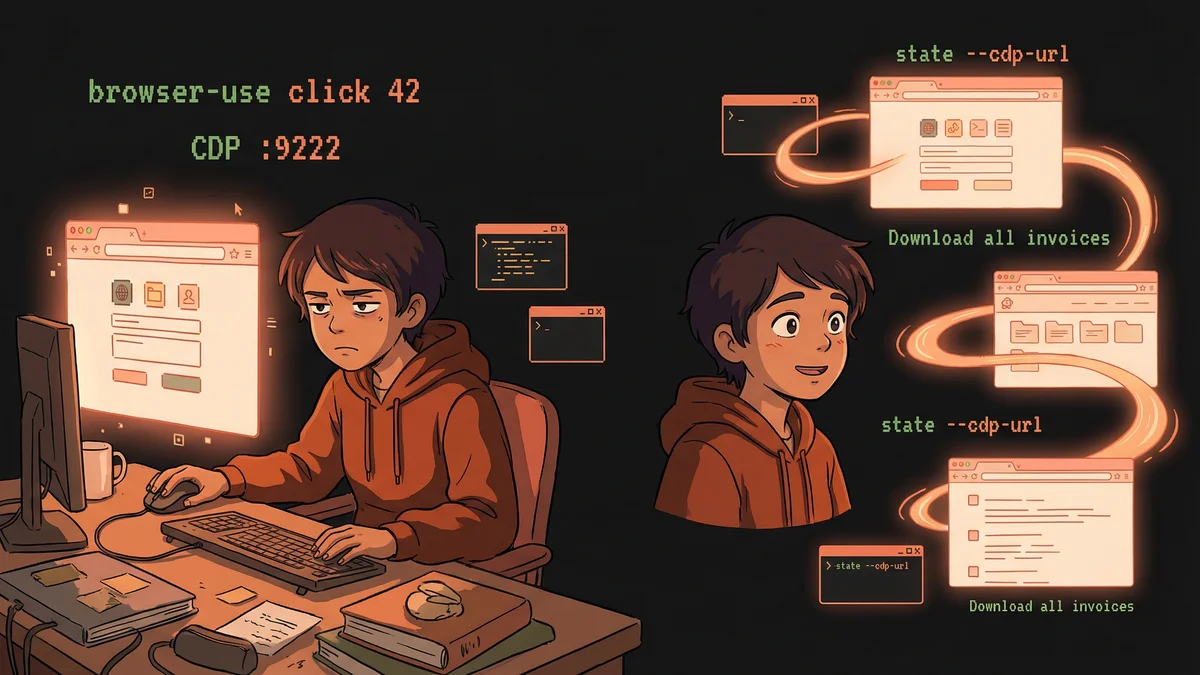
TL;DR
- Claude Code can control your browser to automate web tasks (invoices, forms, QA testing)
- Uses browser-use library — designed specifically for AI agents
- “Real Chrome” mode lets Claude use your existing logins and sessions
- Works locally or via SSH tunnel from remote servers
- Setup takes ~10 minutes with the prompts below
What You’ll Build with Claude Code
A browser automation setup that lets Claude Code control your browser — filling forms, downloading invoices, extracting data, and handling the boring web tasks you’d rather not do manually.
The killer feature: Claude Code can use your actual browser with all your logged-in sessions. No re-authenticating to Gmail, Stripe, or your company dashboard.
What Can You Do With This?
Once set up, you can ask Claude Code things like:
Automate the boring stuff:
- “Download all my invoices from OpenAI and Anthropic for the last quarter”
- “Check my Gmail for unread emails from [specific person]”
- “Fill out this expense report form with the data from this spreadsheet”
- “Log into my bank and download my last 3 statements”
Extract data:
- “Go to [dashboard URL] and tell me if there are any critical alerts”
- “Extract all the product names and prices from this e-commerce page”
QA and testing:
- “Test the login flow on our staging site — try valid credentials, invalid password, and empty fields”
- “Go through our checkout process and verify each step works correctly”
- “Run a nightly smoke test on our web app and report any broken pages”
The key insight: anything you’d do manually in a browser, Claude can now do for you.
Some tech info
There are alternative solutions (like one called Playwright MCP). They work as well, but browser-use was built specifically for AI agents:
| Feature | browser-use | Playwright MCP |
|---|---|---|
| State output | Indexed elements [42]<button> | Raw HTML/selectors |
| LLM-friendly | Yes (designed for agents) | Needs processing |
| Real browser sessions | Yes (your logins work) | Fresh browser each time |
| Learning curve | Copy one command | Configure MCP server |
browser-use gives Claude a numbered list of everything on the page: [1] Search box, [2] Login button, [3] Menu item. Claude says “click 2” and it happens. Clean and simple.
Prerequisites
- Claude Code installed and working
- Chrome or Chromium browser
- Python 3.11 or higher (Claude Code can help you check/install this)
Step 1: Install browser-use
Copy this prompt and give it to Claude Code:
I want to set up browser-use so you can control my browser. Please:
- Check if I have Python 3.11+ installed
- Install browser-use using pip
- Run
browser-use installto set up Chromium- Verify the installation works
If anything fails, help me fix it.
Step 2: Install the Claude Code Skill
The skill teaches Claude Code how to use browser-use commands.
Download and install the browser-use skill from the official repo. The skill file is at: https://raw.githubusercontent.com/browser-use/browser-use/main/skills/browser-use/SKILL.md
Install it to my ~/.claude/skills/browser-use/ directory.
Step 3: Test It Out
Now the fun part. Ask Claude Code:
Use browser-use to open https://example.com and tell me what’s on the page.
Claude will:
- Run
browser-use open https://example.com - Run
browser-use stateto see the page elements - Describe what it sees
If this works, you’re ready for real tasks.
Level Up: Use Your Real Browser
The basic setup uses a fresh Chromium browser. But the real power is connecting to your actual Chrome with all your logged-in sessions.
Why This Matters
- No logging into Gmail, Stripe, GitHub, etc.
- Your saved passwords and 2FA sessions work
- Extensions like password managers stay available
- You can watch what Claude does in real-time
Setup: Start Chrome with Remote Debugging
I want to use browser-use with my real Chrome browser so it has access to my logged-in sessions. Help me:
- Start Chrome with remote debugging enabled on port 9222
- Use a separate profile directory so my main Chrome isn’t affected
- Test that the connection works
Note: The first time you run this, you’ll need to log into your accounts in the new browser profile. After that, they stay logged in.
Tell Claude to Use Your Real Browser
Now when you give Claude browser tasks, specify the CDP connection:
Use browser-use with —cdp-url http://localhost:9222 to check my Gmail inbox for unread emails.
Claude will connect to your running Chrome instead of launching a new browser.
Advanced: SSH Tunnel (Control Local Browser from Remote Server)
If you run Claude Code on a remote server but want it to control your local Mac’s browser (with all your logins), you can set up an SSH tunnel.
The Setup
- Your Mac runs Chrome with debugging on port 9222
- SSH tunnel forwards that port to your server
- Claude Code on the server uses
--cdp-url http://localhost:9222
SSH Config
Add to ~/.ssh/config on your Mac:
Host myserver
    Hostname your-server.com
    User youruser
    RemoteForward 9222 127.0.0.1:9222
How to Use
- Start Chrome with debugging on your Mac (see above)
- SSH to your server:
ssh myserver - On the server, Claude Code can now use
--cdp-url http://localhost:9222
The tunnel makes your local Chrome accessible as if it were running on the server.
Common Gotchas
”Connection refused” when testing CDP
Chrome isn’t running with remote debugging. Make sure you started it with --remote-debugging-port=9222.
Chrome says “profile is already in use”
Your main Chrome is using the default profile. Use --user-data-dir to specify a different directory.
Cloudflare blocks the automation
Some sites detect headless browsers. Since you’re using your real Chrome (not headless), this usually works. If blocked, try browsing to the site manually first to establish a session.
Downloads go to /tmp, not ~/Downloads
browser-use saves downloads to /tmp/browser-use-downloads-*/. Check there if files seem missing.
Claude is controlling a different browser than expected
Symptoms: You see actions happening in a browser window you didn’t intend, or Claude describes a page that doesn’t match what you’re looking at.
This can happen if you have multiple Chrome windows or old browser-use sessions running. Ask Claude:
browser-use seems to be controlling the wrong browser. Can you check what’s running, clean up any stale sessions, and reconnect to my Chrome on port 9222?
Security Notes
- CDP gives full browser control — protect port 9222
- Only bind to localhost (never
0.0.0.0) - Your debug profile has access to all logged-in sessions
- Only run browser automation tasks you’d do yourself
More information
- browser-use documentation — Full command reference
- browser-use GitHub — Source code and issues