TL;DR
- Run Claude Code on Windows using WSL (Windows Subsystem for Linux) in about 20 minutes
- Same underlying AI capabilities as Mac users, just through terminal interface
- VS Code provides a visual layer that makes the terminal less intimidating
- Best for: Windows users who don’t want to wait for native GUI support
- Bonus: Learning terminal basics pays dividends for other technical tools
A Windows user bypassed platform exclusivity by running Claude Code through WSL, achieving the same AI capabilities as Mac users while accidentally learning valuable terminal skills.
Rafael watched the Cowork demos with envy.
Mac users dragging folders into a beautiful interface. Visual progress indicators. One-click agentic workflows. The future of desktop AI, available now.
On Mac. Only Mac.
“I’ve been a Windows user my whole life. My entire workflow was built on Windows. And suddenly the most exciting AI tool was platform-exclusive.”
Rafael refused to wait. He found another way.
The Platform Frustration
The announcement was clear: Cowork was a macOS research preview. Windows support would come later. Timeline uncertain.
“‘Later’ meant nothing. Weeks? Months? A year? I had work that could benefit from this now.”
The productivity gap was real. Mac users at Rafael’s coworking space were automating tasks he still did manually.
“Watching them finish in minutes what took me hours was painful. Same AI. Different access.”
The Terminal Path
Claude Code — the terminal version — worked on Windows.
Rafael had avoided it. The command line felt like developer territory.
“But the terminal Claude and the GUI Cowork used the same underlying engine. If I could handle the interface, I’d have the same capabilities.”
He decided to learn just enough to be dangerous.
The WSL Option
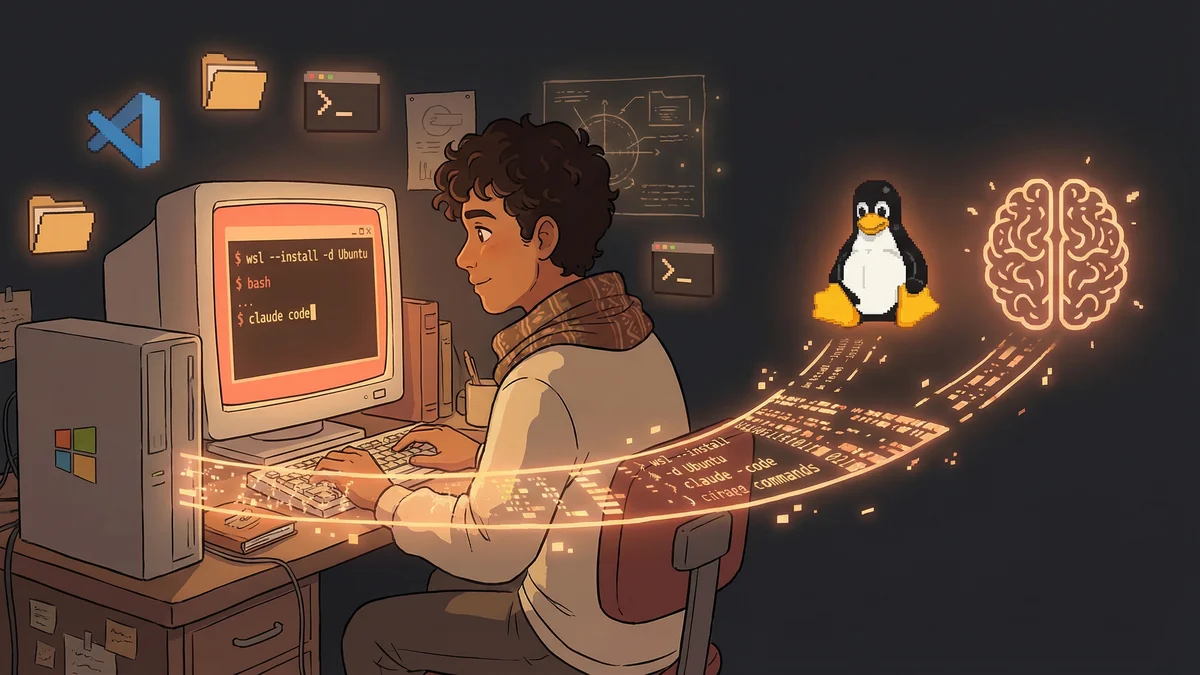
Windows Subsystem for Linux (WSL) was the recommended approach.
WSL let Windows run a Linux environment. Claude Code expected a Unix-like system. WSL bridged the gap.
“Installing WSL was the first hurdle. Microsoft’s documentation walked me through it. Twenty minutes and I had Ubuntu running inside Windows.”
The setup felt technical. But it was installation, not programming. Follow steps, click buttons, wait for downloads.
The Claude Code Installation
With WSL running, Claude Code installed cleanly.
Rafael followed the standard installation. Ran the authentication. Saw the terminal interface for the first time.
“The blinking cursor was intimidating. But I typed my first command and something happened. That was progress.”
He learned to navigate: cd to change folders, ls to list files. Basic vocabulary for talking to the system.
The First File Operation
Rafael pointed Claude at his Documents folder.
“List all the files here and tell me how they’re organized.”
Claude responded with a file listing. Identified categories. Suggested a better organization structure.
“It worked. From Windows. Through WSL. Using the terminal. The capability was there.”
The VS Code Alternative
The terminal was functional but uncomfortable.
Rafael discovered Claude Code worked inside VS Code — Microsoft’s code editor.
“VS Code had a visual file browser. A nicer interface. But underneath, the same Claude Code ran.”
The editor became his bridge. Visual enough to feel familiar. Terminal enough to access Claude Code’s power.
The Configuration Investment
Getting the setup right took effort.
Rafael configured his CLAUDE.md file. Set up file access permissions. Created folder structures that made sense.
“The configuration that Cowork handled automatically, I did manually. But once done, it worked the same way.”
The investment was front-loaded. Hours of setup for months of capability.
The Workflow Development
Without Cowork’s drag-and-drop, Rafael built workflows through prompts.
“Organize my Downloads folder” became the starting point. Then research tasks. Then document generation.
“Each new task type needed its own prompt template. I was building what Cowork provided by default.”
The manual approach was less elegant. But the results were identical.
The Speed Comparison
Rafael informally benchmarked his setup against Mac-using colleagues.
Complex file organization: Comparable Research synthesis: Comparable Document generation: Comparable
“The outcomes were the same. The process was clunkier. But I wasn’t waiting for Cowork to arrive on Windows.”
The Learning Bonus
The terminal exposure had unexpected benefits.
“I started understanding how my computer actually worked. Files, paths, permissions. Concepts I’d never thought about.”
The knowledge transferred. Other tools made more sense. Technical documentation became readable.
“The terminal wasn’t a barrier. It was a window into how things actually functioned.”
The Community Resources
Rafael wasn’t alone. Windows users had formed communities sharing workarounds.
Configuration files. Prompt templates. Troubleshooting tips. A collective effort to bring Claude Code capabilities to the excluded platform.
“Every problem I hit, someone had already solved. The community documentation filled gaps that official docs missed.”
The Rough Edges
The workaround wasn’t perfect.
File path translation between Windows and WSL caused occasional confusion. Some features worked differently. Updates sometimes broke things.
“I spent more time troubleshooting than Mac users did. That was the price of early access through the back door.”
The friction was annoying but manageable. The capability was worth the hassle.
The Native Arrival
Eventually, Claude Code got better Windows support. The workarounds became less necessary.
“But by then, I was comfortable with the terminal. The scary thing had become a useful skill.”
The forced learning paid dividends. Rafael could use either interface — GUI or terminal — depending on the task.
The Current State
Rafael now works across both interfaces.
VS Code for complex file operations where visual context helps. Terminal for quick commands where typing is faster.
“The Windows workaround forced me to learn things I would have avoided. That learning became valuable beyond Claude.”
The Advice
For Windows users waiting for official support:
“Don’t wait. WSL is free. Installation is documented. Claude Code works. The capability is available if you’re willing to learn.”
The terminal wasn’t as scary as it looked. The setup wasn’t as hard as it seemed. The results were the same as what Mac users enjoyed.
“Platform exclusivity was a temporary barrier. Technical willingness was the bridge across it.”