TL;DR
- AI agents process 200 receipt photos into a complete expense spreadsheet in under 1 hour
- Reduces expense report time from 3.5+ hours to 1 hour (saves 10 hours/year)
- Uses AI vision to read receipts plus code execution to create spreadsheets
- Best for: anyone drowning in receipts who procrastinates expense reports
- Key lesson: dump receipts in a folder all quarter, let AI do the tedious work at the end
AI agents can now process 200 receipt photos into a formatted expense report in under an hour, cutting what used to be 3.5+ hours of tedious data entry to just 15 minutes of review.
Nobody has ever said: “I love doing expense reports.”
The receipts pile up. The shoebox fills. Tax season approaches. And suddenly you’re staring at 200 crumpled pieces of paper wondering why you didn’t just keep a spreadsheet.
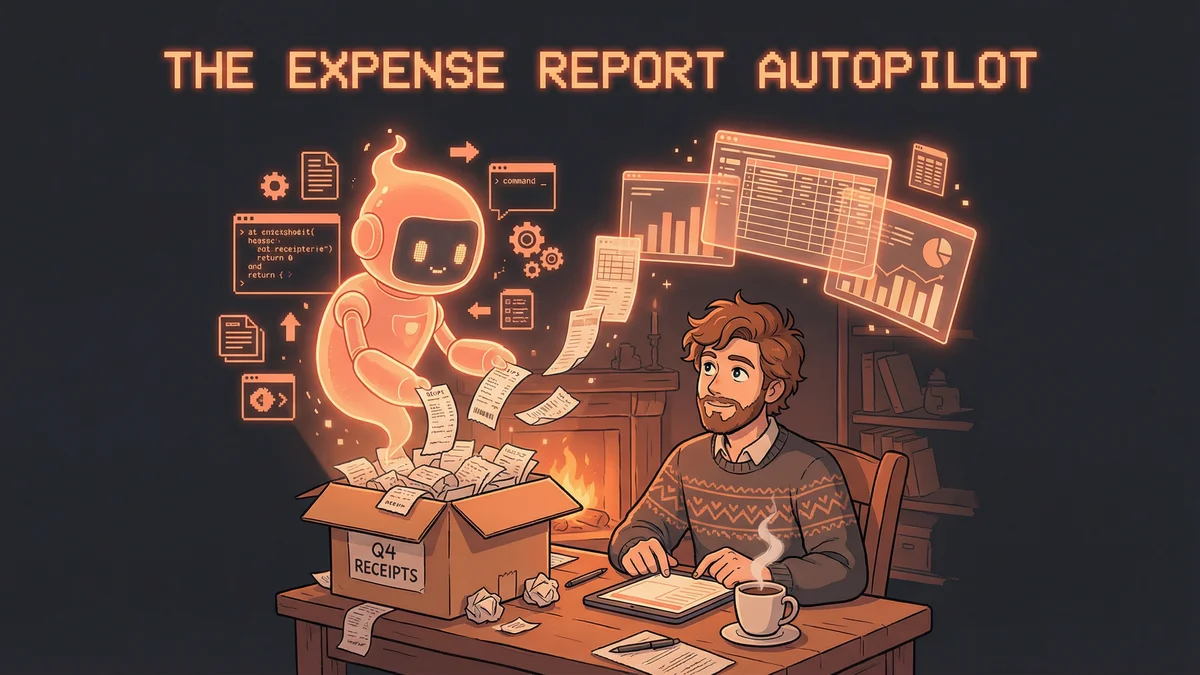
David had been putting off his Q4 expenses for three weeks.
The receipts were there - photographed on his phone, dumped in a folder. But the actual work? Squinting at blurry images. Typing numbers. Categorizing. Cross-referencing with bank statements. Three hours of tedious data entry, minimum.
Then he discovered what happens when you point an AI agent at the problem.
The Old Way vs. The New Way
The Old Way:
- Find all receipts (30 minutes of searching)
- Open spreadsheet template
- For each receipt: look at image, type date, type vendor, type amount, guess category
- Cross-reference with credit card statement
- Total each category
- Format for submission
- Question your life choices
The New Way:
"Here's a folder with 200 receipt photos.
Read each one. Extract: date, vendor, amount, category.
Create an expense spreadsheet.
Flag anything that looks unusual or unclear.
Total by category at the bottom."
Walk away. Come back to a finished expense report.
How Vision + Automation = Magic
Modern AI agents can see.
When you drop a receipt image into Claude Cowork or ChatGPT, it doesn’t just know there’s an image - it reads the image. The handwritten total from that restaurant? Readable. The faded gas station receipt? Decipherable. The coffee shop thermal paper that’s half-disappeared? Often salvageable.
Here’s what happens under the hood:
- Vision model reads the image - extracting text, numbers, layout
- Language model interprets the data - understanding that “11/23” is a date and “$47.82” is a total
- Code execution creates the spreadsheet - organizing data into rows and columns
- Pattern recognition categorizes - “Starbucks” → Food & Beverage, “Shell” → Transportation
The AI doesn’t just transcribe. It understands.
The Workflow That Changes Everything
David’s new quarterly ritual:
Throughout the quarter:
- Take photos of receipts (phone camera, nothing fancy)
- Drop them in a folder called “Q4 Receipts”
- That’s it. No organizing. No naming. Just dump and forget.
End of quarter:
"Process all images in Q4 Receipts folder.

For each receipt, extract:
- Date
- Vendor name
- Total amount
- Best-guess category (meals, travel, supplies, etc.)

Create an Excel file with:
- One row per receipt
- Columns for each extracted field
- Totals by category at the bottom
- A 'Confidence' column - mark any you're uncertain about

Also create a subfolder called 'Unclear' and move any
receipts you couldn't read properly."
45 minutes later: A complete expense spreadsheet.
The “Unclear” folder usually has 5-10 receipts that need manual review - faded, blurry, or unusual formats. Out of 200 receipts, David spends 15 minutes on the edge cases.
Total time: 1 hour instead of 4+.
Beyond Basic Extraction
Once the AI has your expense data structured, the real power emerges:
Anomaly Detection:
"Review this expense report. Flag anything that looks unusual:
- Duplicate charges
- Amounts that seem high for the category
- Missing dates or vendors
- Potential personal expenses mixed in"
The AI catches the $47 charge that appears twice. The “business meal” that was actually at a movie theater. The receipt that doesn’t match any credit card transaction.
Policy Compliance:
"Here's our company expense policy: [paste policy]
Review this expense report for compliance.
Flag any items that exceed limits or require additional documentation."
For companies with expense policies, the AI becomes an instant compliance checker.
Tax Categorization:
"Categorize these expenses for tax purposes:
- Which are deductible?
- Which need documentation for audit?
- Which fall into gray areas?"
Not tax advice - but useful for organizing before your accountant sees it.
The Platform Options
Claude Cowork (Mac): Best for local file processing. You mount your receipt folder, and Claude processes everything locally. Your financial data never leaves your machine (except for the AI processing itself).
Mount: ~/Documents/Q4 Receipts
Task: "Process all images, create expense report,
      save as Q4_Expenses.xlsx in same folder"
ChatGPT Agent Mode: Upload receipts to the chat or connect Google Drive. ChatGPT processes them in its cloud sandbox. Good if your receipts are already in cloud storage.
Both work. The choice depends on where your files live and your privacy preferences.
The Real Numbers
David tracked his time:
| Task | Old Way | New Way |
|---|---|---|
| Collecting receipts | 30 min | 0 min (already in folder) |
| Data entry | 2.5 hours | 0 min |
| AI processing | N/A | 45 min |
| Review & corrections | 30 min | 15 min |
| Formatting | 20 min | 0 min (AI formats) |
| Total | 3.5+ hours | 1 hour |
The time saved: 2.5 hours per quarter. Or 10 hours per year on expense reports alone.
But the real win isn’t time. It’s mental load.
David doesn’t dread expense reports anymore. There’s no procrastination spiral. No three-week delay while the task looms. He dumps receipts in a folder and forgets about them until he needs the report.
Getting Started
Minimum viable workflow:
- Create a folder for receipts
- Photograph every receipt immediately (before it fades)
- At end of month/quarter, point your AI agent at the folder
- Review the output, fix the edge cases
- Submit
Pro tips:
- Good photos matter - flat surface, good lighting, whole receipt in frame
- Include credit card statements - the AI can cross-reference
- Be specific about categories - your company’s categories might differ from generic ones
- Always review - AI makes mistakes, especially on handwritten amounts
The Bigger Picture
Expense reports are a small example of a big pattern:
Tedious + structured + high-volume = AI agent territory.
The task nobody wants to do? The one that’s just reading and typing and organizing? That’s exactly where these agents shine.
David still hates expense reports. He just doesn’t do them anymore.